Flow Task Executer
Overview and Key Concepts
The flow task executer is a task executer which carries a flow tank inside it, so that it can transport bulk or continuous goods.
 The flow task executer is a sub-class of the task executer object. The FloWorks module includes two versions of the task executer: a vessel and a truck.
To switch between these shapes, use the 3D Shapes dropdown on the General tab of the properties window.
When you select one of the predefined options "vessel.3ds" or "TankerTruck.3ds", press OK or Apply, and then reset the model, the FlowTank will automatically be repositioned and resized to a sensible default.
When you provide your own 3DS shape, for example to create a bulk transporting rail car, you will need to reposition the flow tank manually after changing the shape.
The flow task executer is a sub-class of the task executer object. The FloWorks module includes two versions of the task executer: a vessel and a truck.
To switch between these shapes, use the 3D Shapes dropdown on the General tab of the properties window.
When you select one of the predefined options "vessel.3ds" or "TankerTruck.3ds", press OK or Apply, and then reset the model, the FlowTank will automatically be repositioned and resized to a sensible default.
When you provide your own 3DS shape, for example to create a bulk transporting rail car, you will need to reposition the flow tank manually after changing the shape.
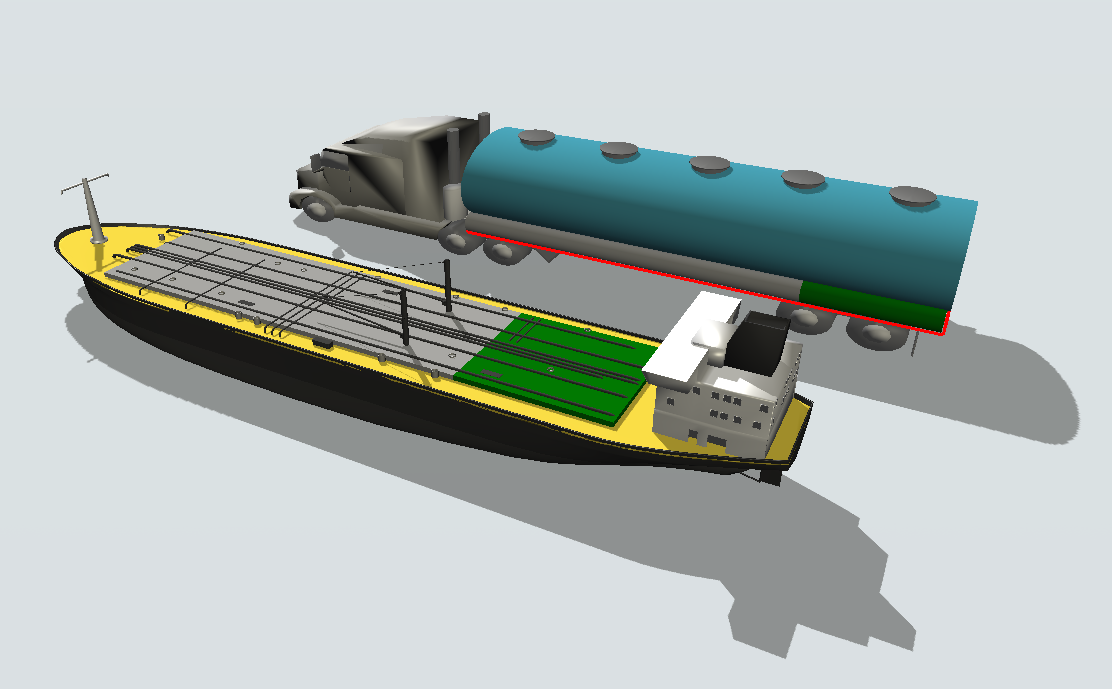 The two default shapes of the flow task executer, with partially filled tanks and the location of the truck's embedded tank highlighted. By default a flow task executer is created with a single flow tank as the first subnode. Ifcurrentis the Task Executer, you can reference this tank as
current.first. Most picklist options, such as the 'Compartment' options for the Loading Arm , default to this reference.
You can manually add more tanks into the flow task executer to create a task executer with multiple compartments, which you can then reference by their rank ascurrent.subnodes[i].
If you create flow task executers from the model flow item bin, FloWorks provides some options of configuring them. For example, the On Creation trigger of the FlexSim source has an additional option
in the dropdown that allows you to set the compartment size and/or content, so that you can easily create vessel flow items with a certain capacity and initial filling level.
Properties and states
Since the flow task executer is a regular task executer with a flow tank embedded in it, see the documentation for these objects for more information on the applicable properties and states.
Check the bounding box
When hovering your mouse over the flow task executer, carefully check the yellow bounding box that appears. When the box is around the tank, (double) clicking will open the tank's properties window or panel that allows you to set the product type, content and capacity of the tank; a box around the whole object means that you will get the properties of the task executer itself
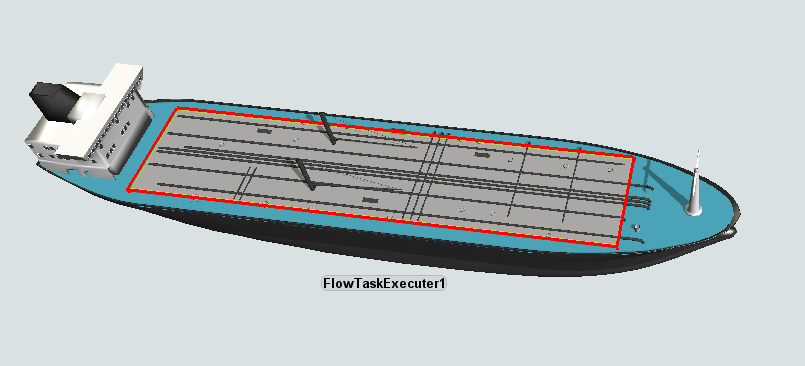 The default flow task executer with the embedded tank highlighted. Check the yellow bounding box before double clicking.